Summary
Adobe forecasts a record $275.1 billion in US online holiday sales this season, up 6.7%. Black Friday lands on November 27, and Cyber Monday is expected to top $15 billion in a single day. This checklist walks a WooCommerce store owner through five checks: site speed, checkout and payments, inventory and shipping promises, order handling, and a review while the sale runs. Each one is small enough to finish this week.
Introduction
Most holiday sales are not lost to a weak offer. They are lost to a slow page, a checkout that throws an error, or a “ships by Friday” promise the warehouse cannot keep. A record forecast means more shoppers arriving in the same few days, and that is exactly when weak spots show.
This is not a promotions guide. For banners, countdown timers and sale announcements, see our earlier post on how to prepare your website for Black Friday. Here we focus on the plumbing: will the store stay fast, take payment, promise only what it can deliver, and handle the orders that follow?
Table of Contents
- Why does holiday readiness matter more this year?
- Will your store stay fast under holiday traffic?
- Can every shopper actually pay you?
- Can you keep the promises on your product pages?
- What happens to an order after the click?
- How do you watch the sale while it is still running?
- What should you do this week, next week and on launch day?
- How can Virtina help you get ready?
- Conclusion
- Frequently asked questions
Why does holiday readiness matter more this year?
Adobe expects Black Friday online spending of about $12.9 billion, up 9.2%, and a Cyber Monday above $15 billion, which would be a single-day record. Bigger days mean sharper spikes. A store that copes on an ordinary Tuesday can still fall over when traffic triples in an hour.
The good news is that most holiday failures are predictable. They come from the same five areas every year, and you can test each one before the rush. Use the sections below as a working list, not a reading exercise.
Will your store stay fast under holiday traffic?
Shoppers on a sale day are impatient. If a product page takes several seconds to appear, many will open a competitor tab instead. Speed work before the peak pays for itself.

Test the pages that make money
Run your home page, a top category page, your best-selling product page, the cart and the checkout through a speed test on a mobile connection. Note the slowest one. That page is where you start.
Cut the weight
Compress large product images, remove plugins you no longer use, and confirm caching is switched on. Cart and checkout pages should be excluded from page caching so shoppers never see someone else’s basket or a stale total. If you want a deeper pass, our performance optimization service covers it. For store-specific fixes, read how to speed up WooCommerce without switching hosts.
Check your hosting limits
Ask your host how much traffic your plan handles and what happens when you pass it. If the answer is “the site slows down or goes offline”, arrange a temporary upgrade now, not on November 27. A short load test on a staging copy of the store shows where it starts to struggle.
Can every shopper actually pay you?
Checkout is where interest turns into revenue, and where small faults cost the most. Place at least three real test orders, on a phone and on a desktop, before the sale starts.

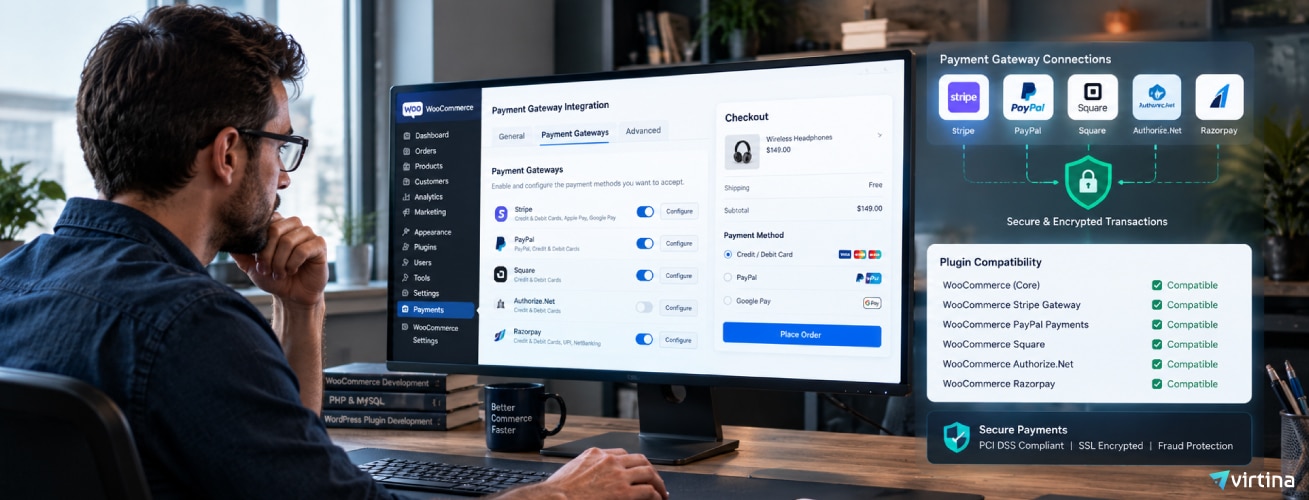
- Payment methods: confirm each gateway still works, including cards, PayPal and any wallet buttons. Gateways sometimes need renewed keys or a reconnect after a plugin update. Our WooCommerce payment gateway integration team sees this often.
- Coupons and discounts: test every code you plan to run, including stacking, minimum spend and expiry dates.
- Taxes and shipping at checkout: check totals for a few different US states and for an address far from your warehouse.
- Emails: the order confirmation should arrive within a minute and not land in spam. If your host limits outgoing mail, use a dedicated email service.
- Error messages: try a declined card and an expired coupon. The message should tell the shopper what to do next.
If a shopper cannot pay on the first attempt, many will not try a second time. Fix the friction you can find now. If checkout keeps failing, see what a WooCommerce checkout not working fix involves.
Can you keep the promises on your product pages?
Overselling is the quiet holiday killer. A shopper pays for an item you do not have, and you spend December refunding and apologizing.

Make stock numbers trustworthy
Turn on stock management for every product with limited quantity and confirm the numbers match your warehouse or supplier. If you sell on more than one channel, check how stock syncs between them. A sync that runs once a day is too slow for a sale. A stock management plugin for WooCommerce can keep counts accurate across channels.
Set sold-out rules on purpose
Decide, product by product, whether to hide an item when it sells out, allow backorders with a clear delivery date, or show a “notify me” option. Do not leave this to defaults.
Promise only what you can ship
Publish last-order dates for standard and expedited delivery, and show them on product pages and at checkout. Agree handling times with your warehouse or fulfillment partner now, and add a buffer. Carriers are at their busiest in the same weeks you are.
What happens to an order after the click?
A sale is not finished at checkout. Walk one order through your whole process and look for places where a person has to do something by hand.

- Order alerts: who sees a new order, and how fast? Set up alerts for failed payments and orders on hold.
- Fulfillment: if you use a shipping or warehouse integration, send a test order through it and check the label, the tracking number and the customer email.
- Customer support: prepare short answers to the five questions you expect most, such as “where is my order?” and “can I change my address?”. Put them on a help page so fewer people need to write in.
- Staffing: note who is on call for the site, the payment gateway and the warehouse over Black Friday weekend, and how to reach them.
Also freeze risky changes. Avoid new plugins, theme changes or settings changes in the days before the sale unless you have tested them on a staging site first, and take a full backup before it starts.
How do you watch the sale while it is still running?
Do not wait until December to learn what happened. Keep an eye on a few numbers during the event:
- Site uptime and page speed on your key pages
- Conversion rate and cart abandonment, compared with a normal week
- Failed payments and checkout errors
- Stock levels on your top sellers
- Support requests, grouped by reason
If something drops sharply, you can act the same day. After the weekend, write down what worked, what broke and what you would change. That short note becomes next year’s checklist and will save you hours.
What should you do this week, next week and on launch day?
This week: run speed tests, fix the slowest page, place test orders on every payment method, and confirm stock counts.
Next week: publish shipping cutoff dates, check emails and order alerts, load test on staging if your traffic is large, and take a full backup.
Launch week: freeze changes, brief your team, and keep your monitoring numbers open. Run a test checkout yourself every few hours.
How can Virtina help you get ready?
Virtina has built and supported WooCommerce stores for more than 14 years. If you would like an expert pair of eyes on the store before the rush, we can review speed, checkout, integrations and security, and give you a short list of fixes in priority order. See our eCommerce support services or get in touch and we will tell you what to fix first.
Conclusion
Holiday success is mostly preparation. Keep the store fast, make checkout work for every shopper, promise only what you can ship, follow each order through to delivery, and review the sale while it runs.
With a record season forecast, a few hours of testing this week can protect the biggest days of your year. Work through the five checks, fix what you find, and go into November 27 with confidence.
Frequently Asked Questions
How early should I start preparing my WooCommerce store for the holidays?
Ideally four to six weeks before Black Friday. With the sale on November 27, that means starting now. Speed and checkout fixes take the longest, so do those first.
Do I need a bigger hosting plan for Black Friday?
Not always. Ask your host about traffic limits and test your store on a staging copy. If the site slows down under test, a temporary upgrade for the holiday weeks is usually cheaper than lost sales.
How many test orders should I place?
At least one for every payment method, on both mobile and desktop, plus one for each coupon type you plan to run. Also try one declined card to check the error message.
Should I update plugins right before the sale?
Update early, test on staging, and freeze changes a few days before the event. Last-minute updates are a common cause of checkout problems.
How do I avoid overselling popular items?
Turn on stock management, keep inventory synced across every channel in near real time, and set clear backorder or sold-out rules for each product before the sale starts.
What should I monitor during the sale?
Uptime, page speed, conversion rate, failed payments, stock on top sellers and support requests. Check them several times a day so you can fix problems the same day.