Summary
To find out whether old plugins will break on WooCommerce HPOS, go to WooCommerce > Settings > Advanced > Features, click View and manage to see any plugin flagged as incompatible, then test checkout, refunds and reports on a staging copy of your store with sync on and off. WooCommerce says HPOS can make order creation up to 5x faster and order lookups up to 40x faster, but only plugins that declare support can use it. This is a store owner checklist. For the migration steps themselves, see our HPOS migration guide.
Introduction
Your store runs fine today, and then someone tells you to turn on HPOS. The switch is a few clicks. The risk is the plugin you installed years ago and never thought about again.
We kept this page to one question: which of your plugins and tools will break, and how do you find out before customers do? The definition of HPOS, the reasons to switch and the full migration plan live in our HPOS migration guide, so we do not repeat them here.
Everything below follows WooCommerce’s own documentation and developer announcements, checked in October 2026.
Table of Contents
- Summary
- Introduction
- What is HPOS, and why does plugin compatibility matter?
- Is HPOS already turned on in your store?
- How do you find which plugins are not HPOS compatible?
- What should you do about a plugin that is not compatible?
- What does a plugin that breaks on HPOS look like?
- How do you test plugin compatibility before you switch?
- What changed in 2026 that affects older plugins?
- Should you wait if a plugin you need is not ready?
- People also ask
- Conclusion
- Frequently Asked Questions
What is HPOS, and why does plugin compatibility matter?
HPOS (High-Performance Order Storage) moves WooCommerce orders out of the general WordPress posts tables and into dedicated order tables. WooCommerce announced it in October 2023 and claimed up to 5x faster order creation, up to 1.5x faster checkout and up to 40x faster order lookups. It published no test method for those numbers, so treat them as a ceiling, not a promise.
Compatibility matters because a plugin or snippet that reads or writes orders the old way, straight in the posts tables, may stop seeing or saving orders correctly once HPOS is the main storage. Plugins that use WooCommerce’s own order functions keep working.
Is HPOS already turned on in your store?
You can check in under a minute:
- In your WordPress admin, go to WooCommerce, then Settings, then Advanced.
- Open the Features tab.
- Look at Order data storage. It shows either WordPress posts storage (legacy) or High-performance order storage.
- Look at the checkbox labelled Enable compatibility mode (synchronizes orders to the posts table). If it is ticked, WooCommerce keeps both order tables in step.
Stores created on or after October 10, 2023 (WooCommerce 8.2) have HPOS on by default. Older stores were not switched automatically, so if yours is older you are probably still on legacy storage.
How do you find which plugins are not HPOS compatible?
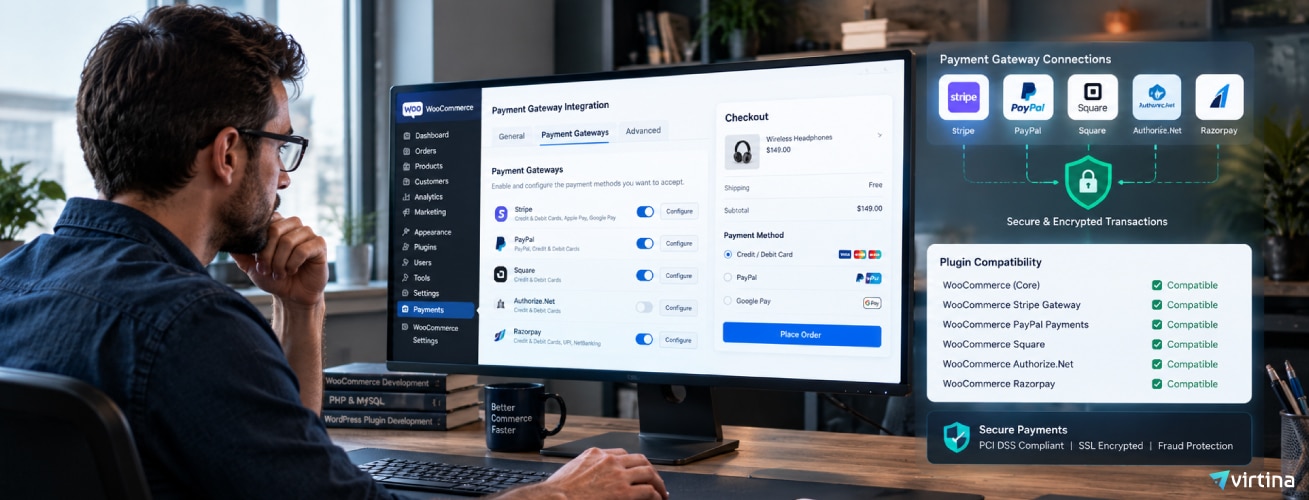
WooCommerce does the first pass for you. Plugin developers declare whether their plugin supports HPOS, and WooCommerce lists the ones that do not.
- On the same Features screen, find the compatibility notice and click View and manage.
- You will see your plugin list filtered to the incompatible ones.
- Prefer a shortcut? Type this after your domain name: /wp-admin/plugins.php?plugin_status=incompatible_with_feature&feature_id=custom_order_tables
While an incompatible plugin is active, the HPOS option stays greyed out, so WooCommerce will not let you switch by accident. In 2023 WooCommerce also told developers to update their extensions and said those that were not updated would be removed from its Marketplace. Copies you already installed keep working without HPOS.
Why is a clean list not the same as a safe store?
The flag only covers plugins that declare support. It cannot see your custom code snippets, your accounting connector, a shipping tracker or a reporting tool that reads the database directly. WooCommerce’s own large-store guide calls these direct database readers the most likely hidden failure, because a system outside PHP can break without showing any error.
What should you do about a plugin that is not compatible?
The right move depends on what kind of problem you have.
| Situation | What it means | What to do |
|---|---|---|
| Flagged as incompatible | The developer has not declared HPOS support. | Update the plugin first. If no update exists, ask the developer for a date, or plan a replacement. |
| No flag, but not updated for years | It may work, or it may still write orders the old way. | Test it on staging with sync on and off before you switch. |
| Custom code or snippets | Code that uses wp_update_post, update_post_meta or direct SQL on orders can bypass HPOS. | Ask your developer to move it to WooCommerce’s order functions. |
| Accounting, shipping or reporting tool reading the database | It may read the old tables and show empty or stale data. | Ask the vendor how it reads orders, then compare an export with the orders screen. |
| Plugin declares compatibility | The developer says it supports HPOS. | Still run the checkout and refund tests below. |
You are not forced to switch. If one plugin you cannot live without is not ready, staying on legacy storage is a sound choice until it is.
What does a plugin that breaks on HPOS look like?
Most failures are quiet. Watch for these signs when you test or switch:
- Recent orders missing from the WooCommerce orders screen, or order counts that do not match your payment provider.
- Reports, exports or accounting syncs that return zero rows or old data. Reports that read the old postmeta table directly are a common cause.
- Order statuses that flip back after you change them, or older data overwriting new orders. WooCommerce’s February 2026 advisory links these problems to sync on read.
- Custom order fields that go blank in the admin or in customer emails.
- Refunds or subscription renewals that fail during testing.
How do you test plugin compatibility before you switch?
Test on a copy of your store, never on the live site first. Ask your host for a staging site, or ask your developer to set one up. Then follow the order WooCommerce recommends for large stores, simplified:
- Update WooCommerce, your theme and every plugin to the latest version.
- Copy the live store, with its real orders, to staging and turn on compatibility mode so both order tables stay in sync.
- Switch the staging store to High-performance order storage.
- Run the test list below once with compatibility mode on, then again with it off.
- Check your outside systems: export orders into your accounting tool, shipping tracker or report and compare them with the orders screen.
- Only then plan the live change, ideally in a low-order period.
| Test | What to do | It passes when |
|---|---|---|
| Checkout | Place a test order with every payment method you offer. | The order appears in the orders screen with the right status and totals. |
| Refunds | Refund one test order in full and another in part. | The refund shows on the order and in your payment provider. |
| Subscriptions | If you sell subscriptions, buy one and run a renewal. | A renewal order is created and paid. |
| Order changes | Change a status, add a note and edit an address. | The change is still there after you reload the page. |
| Reports and exports | Run your usual sales report and accounting export. | Totals match the orders screen. |
| Custom fields | Open an order that has custom fields and view its email. | The fields show in the admin and in the email. |
Large stores should also plan for the sync itself. WooCommerce backfills orders in batches of 25, and the author of its large-store guide reported about a week for a store with 9 million orders. That is one store’s experience, so time your own sync on staging.
What changed in 2026 that affects older plugins?
On February 16, 2026, the WooCommerce team announced that sync on read would be disabled by default starting in WooCommerce 10.7, which was released on April 14, 2026. Sync on read copied changes from the old posts table back into HPOS when the old record looked newer. WooCommerce said that could cause order status reversions or stale data overwriting current orders.
It affects stores that run HPOS with compatibility mode on and also use custom code or plugins that write order data straight to the posts table. Stores that use only HPOS-compatible plugins should see no impact, and stores on legacy storage are not affected. Affected stores see a one-time, dismissible admin notice after the upgrade.
If you see that notice, do not just dismiss it. Send it to your developer and ask which plugin or snippet writes to the posts table. WooCommerce’s guidance is to move that code to its order functions, and developers can temporarily switch sync on read back on with a filter while they fix it. WooCommerce also suggests that if orders have run smoothly, you can consider turning compatibility mode off under WooCommerce > Settings > Advanced > Features. The 10.7 release post lists a related database update but does not restate the change, so confirm how your own store behaves.
Should you wait if a plugin you need is not ready?
Often, yes. HPOS helps most on stores with large order volumes, where the shared postmeta table slows searches and reports. If you process a modest number of orders, the gain may be small, and a broken checkout plugin costs more than it saves. WooCommerce has said HPOS will eventually become the default for all stores but has not given a firm date.
Wait if your payment, shipping or subscription plugin is flagged. Move ahead when the list is clean, the staging tests pass and your outside tools have been checked. If your store feels slow for other reasons, our WooCommerce performance diagnostic covers the other common causes, since order storage is only one of them.
People also ask
Is HPOS on by default? For stores created on or after October 10, 2023 (WooCommerce 8.2), yes. Older stores must opt in.
Can I turn HPOS off after switching? Yes. Make sure compatibility mode is on, wait for the sync to finish, then choose WordPress posts storage (legacy). While compatibility mode stays on, going back is instant.
Do I need a developer to check compatibility? Not for the first check, which is a menu in WooCommerce. You will want help for staging, custom code and outside tools.
Conclusion
HPOS is worth it when your plugins are ready for it. Check the Features screen, look past the flag at custom code and outside tools, test on staging with sync on and off, and switch only when the tests pass.
Need a hand? Our team can audit your plugins and fix what breaks. See our WooCommerce bug fix service, or read our HPOS migration guide for the full migration plan.
Frequently Asked Questions
Should I deactivate my subscription or booking plugins before switching?
No. WooCommerce advises keeping extensions that use custom post types, such as WooCommerce Subscriptions or Bookings, active before you enable HPOS. Deactivating them first can cause data discrepancies.
How long does the order sync take?
It depends on your order volume. With compatibility mode on, WooCommerce copies orders in background batches of 25, and your developer can run the sync from the command line to time it on staging. One large store with 9 million orders reported about a week.
Will an incompatible plugin stop my store from working?
No. It stops you from switching to HPOS, because the option stays disabled while an incompatible plugin is active. Your store keeps running on legacy storage.
Does a store created recently need to do anything?
Stores created on or after October 10, 2023 already have HPOS on by default. The job for those stores is keeping every new plugin and snippet compatible, so check the Features screen after each plugin install.