

Summary
A WooCommerce plugin conflict happens when two pieces of code interfere with each other. Usually a plugin clashes with the theme or with another plugin.
The result is a broken cart, a dead button, a blank page or a slow store. The fastest way to find the culprit is to read the error first. Then test with only WooCommerce active, and add plugins back in halves.
Do the testing on a staging copy or in troubleshooting mode so customers never see it. Fix the cause by updating, rolling back, replacing the plugin or reporting it to its developer.
Introduction
It usually starts the same way. You update a plugin, and an hour later something that worked yesterday no longer does. The cart will not update, a product page shows a blank gap or the admin throws a critical error.
This guide shows how to confirm a conflict. It then shows how to find the responsible plugin with a repeatable method, and how to choose the right fix.
You do not need to read code. Follow the steps in order.
Table of Contents
- Quick answer: how do you spot a plugin conflict?
- How do you confirm it is a plugin conflict?
- How do you test without breaking the live store?
- What is the step-by-step method to find the culprit?
- Which kinds of plugins cause conflicts most often?
- How do you fix a plugin conflict once you find it?
- How do you prevent plugin conflicts?
- When should you get help with a plugin conflict?
- Frequently asked questions
Quick answer: how do you spot a plugin conflict?
A plugin conflict usually shows up as one of five signs. The table pairs each sign with its likely cause and the first place to look.
| What you see | What it usually means | Where to look first |
|---|---|---|
| Broke right after an update | The new version clashes with another plugin or the theme | Update history and the browser console |
| Button or form does nothing | A JavaScript error stops other scripts from running | Browser console (F12, then Console) |
| Blank page or critical error | A PHP fatal error from incompatible code | WooCommerce Status logs and the PHP error log |
| Layout broken on shop or product pages | Theme styles or template overrides out of date | Status report template overrides |
| Works logged in as admin, fails for guests | Caching or security plugin behaving differently by role | Cache and firewall settings |
How do you confirm it is a plugin conflict?
You confirm a conflict by reading the browser console, the WooCommerce logs and Site Health before you switch anything off. Do not guess. A wrong guess costs time and can cost orders.
Which three checks point to a conflict?
- Open the broken page, press F12 and click Console. A red error that names a plugin folder in its file path is a strong clue.
- Open WooCommerce, then Status, then Logs. Look for entries dated when the problem started.
- Check Tools, then Site Health in WordPress. Look for critical issues and a list of recent errors.
If the console and logs are clean but the problem is still there, a conflict is still possible. Move on to the test below.
What should you record before you change anything?
Write down what you see before you touch a setting. A clear record lets you undo any step. It also gives a developer something concrete to work from.
- The time the problem started and the exact page where it happens.
- The last plugin, theme or WordPress updates, with dates.
- The exact text of any error message, plus a screenshot of the console.
- Whether it fails for guests, for logged-in customers or for admins only.
- The system status report from WooCommerce, then Status, saved as a text file.
The status report lists your active plugins, their versions and your PHP version in one place. You will need that list for every later step.
How do you test without breaking the live store?
You test safely on a staging copy of your site or in troubleshooting mode. Never test on the live store during trading hours. Take a full backup before you start, whichever route you use.
Why not test on the live store?
Customers will hit the broken or half-working version while you test. Switching off a payment or shipping plugin can also stop orders at checkout. That is a loss you cannot undo.
What is troubleshooting mode?
If you have no staging copy, use the free Health Check and Troubleshooting plugin from WordPress.org. Its troubleshooting mode disables plugins and switches to a default theme for your own logged-in session only. Visitors continue to see the normal site.

What is the step-by-step method to find the culprit?
You find the culprit by switching to a default theme, testing with only WooCommerce active, then re-enabling plugins in halves. It finds the problem in a handful of steps, even on a store with dozens of plugins. Repeat the same action after each step, such as adding a product to the cart.
Does switching to a default theme fix it?
Switch to a default theme such as Storefront. If the problem disappears, the theme or a template override is the cause.
Does the problem stay with only WooCommerce active?
Deactivate every plugin except WooCommerce. If the problem disappears, a plugin is the cause. If it stays, check WooCommerce itself, your PHP version and your host.
How do you re-enable plugins in halves?
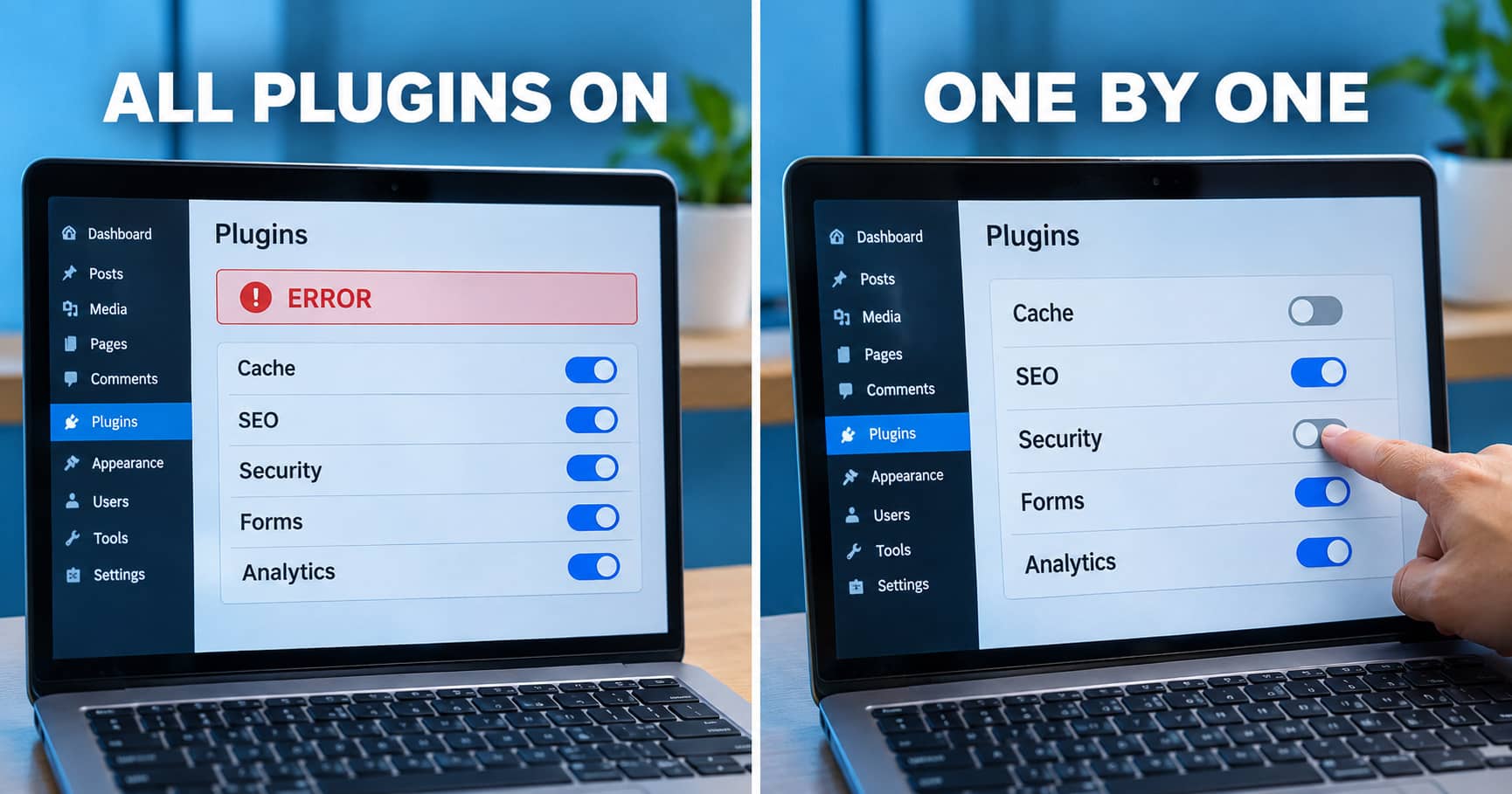
Turn on half of the plugins and test. If it breaks, the culprit is in that half. Split that half again, and repeat until one plugin is left.
The halving method is far faster than switching plugins on one by one. A store with 32 plugins takes about five rounds instead of 32.
What if two plugins only break together?
Some conflicts need two plugins at once. Turn the suspect on with WooCommerce only. If it works alone, find the second plugin by adding the others back one at a time.
Which kinds of plugins cause conflicts most often?
Any plugin can clash, but a few categories cause most of the trouble. They change how pages load or how requests are handled.
Which plugins change how pages and requests load?
- Caching and optimization plugins that minify, combine or delay JavaScript can break checkout and cart scripts.
- Security and firewall plugins can block background AJAX requests as suspicious.
- Page builders and theme add-ons can override WooCommerce templates or scripts.
Which plugins clash by overlapping or ageing?
- Several plugins doing the same job, such as two payment, shipping, SEO or schema plugins running together.
- Old plugins that have not been updated for your current PHP or WooCommerce version.
Support for newer WooCommerce features is a common source of this kind of clash. Order storage is one example, covered under HPOS plugin compatibility.
How do you fix a plugin conflict once you find it?
You fix a conflict by updating, rolling back, adjusting settings, replacing the plugin or reporting it to the developer. Finding the plugin is half the work. Choose the fix that keeps your store stable.
Should you update or roll back first?
Update both plugins. Many conflicts are fixed in a newer version, so read the changelog first.
Roll back. If the conflict began with a recent update, return to the previous version while you wait for a fix.
When should you adjust settings or replace the plugin?
Adjust settings. Exclude the affected pages from minify, delay or firewall rules instead of removing the plugin.
Replace the plugin. If the developer no longer updates it, switch to a maintained alternative.
How do you report the conflict and check the fix?
Report it. Send the plugin developer your console error, your versions and the steps to repeat the problem.
If the fix touches a payment or checkout plugin, check the result with a real test order. This list of what to test after a WooCommerce checkout fix covers the main points.

How do you prevent plugin conflicts?
You prevent conflicts by controlling changes, because conflicts rarely appear out of nowhere. They follow updates and new plugins.
How should you handle updates?
- Test updates on staging before they reach the live store, one plugin at a time.
- Check the “tested up to” version on each plugin page before updating WooCommerce or WordPress.
How do you keep the plugin list healthy?
- Keep the plugin list short and remove anything you no longer use.
- Keep a short change log so you know what changed before a fault appeared.
If this is too much alongside running a business, a WooCommerce support and maintenance plan covers updates and testing.
When should you get help with a plugin conflict?
Get help if payments are involved, the store is down or the logs show a fatal error. Get help too when the plugin is custom built. A wrong guess on a live store can cost orders.
What can a specialist do that you cannot?
Virtina’s WooCommerce bug fix service diagnoses conflicts on a staging copy. It fixes the cause while your live store stays up.
A custom built plugin may need changes in its own code, which falls under WooCommerce development services. For a wider look at common faults, read about the top WooCommerce bugs.
Frequently asked questions
Does deactivating a plugin delete its data?+
Usually not. Deactivating stops the plugin running but keeps its settings and data. Deleting a plugin can remove data, depending on how it was built.
Deactivate for testing. Only delete once you are sure and have a backup.
How many plugins are too many for WooCommerce?+
There is no fixed number. A store with 15 well built plugins can run better than one with five poor ones. Judge each plugin by its update history, its load on every page and whether you still use it.
Can a plugin conflict slow my store down?+
Yes. Two plugins that repeat the same work can slow the store without breaking anything. So can one that runs heavy queries on every page.
A profiling tool such as Query Monitor shows which plugins take the most time.
Should I roll back WooCommerce itself after an update?+
Only if the conflict started with that update and you cannot fix it quickly. Test the rollback on staging first and check the database version. Updating the other plugin or theme is usually the safer route.
What do I send the plugin developer?+
Send the plugin, WooCommerce and PHP versions. Add the exact console or log error and the steps that reproduce the problem. Developers can fix a clear report much faster than a vague one.
Conclusion
A plugin conflict feels random until you test it in order. Read the error, test with only WooCommerce active, then add plugins back in halves. That method finds the culprit in minutes, not hours.
Fix it by updating, rolling back, adjusting settings or replacing the plugin. Stop it coming back by testing updates on staging first.