Summary
WooCommerce does not handle B2B pricing, customer groups, or catalog access out of the box. Each piece needs its own setup: role-based pricing, tiered discounts, minimum order quantities, quote requests, tax exemption, and catalog visibility.
This guide covers all six areas with named plugins and real admin-panel steps. It also compares B2BKing, Wholesale Suite, and WooCommerce.com’s native B2B Pricing extension. You’ll leave with a working setup path, not a stack of generic advice.
Introduction
A B2B buyer expects different prices, different minimums, and sometimes a different catalog than a retail shopper sees. Default WooCommerce gives every visitor the same price, the same checkout, and the same product list. Closing that gap takes deliberate configuration, not a single toggle.
Most WooCommerce B2B guides either pitch one plugin or stay vague about admin steps. This one names three plugin paths and compares what each actually supports. It walks through dashboard-level settings for customer groups, tiered pricing, MOQ, quote requests, tax exemption, and catalog visibility.
Net payment terms and the customer self-service portal are covered elsewhere on this site. They’re linked where relevant, so this guide stays focused on pricing and access mechanics.
Table of Contents
- How do you set up customer groups and role-based pricing?
- How do tiered and quantity-based pricing rules work?
- How do you enforce minimum order quantities?
- What is a quote request workflow and when do you need one?
- How do you handle tax exemption certificates?
- What catalog visibility rules should you use?
- Which B2B pricing plugin should you choose?
- People also ask
- Conclusion
- Frequently asked questions
How do you set up customer groups and role-based pricing in WooCommerce?
You set up customer groups and role-based pricing in WooCommerce with a dedicated B2B plugin. The core platform has no native concept of a wholesale role with its own price list. Three plugins dominate this space: B2BKing, Wholesale Suite, and WooCommerce.com’s own B2B Pricing extension.
B2BKing creates custom user roles, such as wholesale, distributor, or VIP. It lets you set group-specific price rules and hidden catalogs from one settings screen. Wholesale Suite takes a narrower approach.
It adds a single “Wholesale Customer” role with its own price field per product. This is simpler to configure but less flexible for multiple B2B tiers.
WooCommerce.com’s native extension integrates with your existing customer roles. It fits well if you already use WooCommerce.com extensions.
Which plugin should you pick for customer groups
Pick B2BKing if you need multiple buyer tiers, like distributor, retailer, and VIP, each with its own price list. Pick Wholesale Suite if you have one wholesale tier and want the fastest path to a working price difference.
Pick the native extension if you already pay for WooCommerce.com extensions and want first-party support.
Plugin conflicts are common once two or three of these run together. Most stores configuring this for the first time bring in a WooCommerce development company to test the combination before launch.
How new accounts get assigned to a group
New B2B accounts get assigned to a group through a registration form, an admin approval step, or both together. B2BKing supports a gated registration flow. A new account sits in pending status until staff approve it and assign a role.
Wholesale Suite is simpler here too. New users pick “Wholesale Customer” at signup, then wait for manual approval before the wholesale price shows.
Setting the actual role-based price
Once a plugin is active, role-based pricing works the same way across all three. You set a base retail price on the product.
Then add a second price field or discount tied to the buyer’s role. A distributor role might see 20% off, while a VIP retailer might see a flat unit price.
The discount applies the moment that buyer logs in, before checkout. This is also the layer where role-based pricing connects to your broader integration work. Most ERPs store customer-specific price lists that need to sync into whichever plugin you choose.
Price lists often live in a separate system. ERP integration keeps that pricing data and your records in sync.
How do tiered and quantity-based pricing rules work in WooCommerce?
Tiered and quantity-based pricing rules in WooCommerce work by attaching discount breakpoints to a product or category. The unit price drops as order quantity rises. A buyer ordering 10 units pays one price, and the same buyer ordering 100 units pays less per unit.
B2BKing and Wholesale Suite both support this through a rules table inside the product or a global rule set. You define a quantity range and a price or percentage discount for that range.
A typical setup looks like this: 1 to 9 units at full price, 10 to 49 units at 8% off. 50 to 99 units land at 15% off, and 100-plus units at 22% off.
Setting up a tier table step by step
- 1. Install the plugin. Install your chosen pricing plugin and activate the tiered pricing module.
- 2. Open the right scope. Open the product, or the category for bulk rule application, that you want to configure.
- 3. Add a rule row. Add a new pricing rule row for each quantity break point.
- 4. Enter the break point. Enter the minimum quantity and a fixed price or percentage discount per row.
- 5. Assign the audience. Assign the rule to a specific customer group, or leave it open to all B2B buyers.
- 6. Test the math. Save the rule, then test the cart at each tier to confirm the numbers are right.
Category-level versus product-level tiers
Category-level tiers save setup time when every product in a line shares the same discount structure. Product-level tiers give you precision when certain SKUs carry tighter margins.
Most manufacturers and distributors mix both: a baseline category discount, with product-level overrides on high-margin or low-stock items. Quantity discounts, volume pricing, and wholesale pricing are the terms you’ll see most in these plugin settings.
If your store also runs a B2B eCommerce marketplace with multiple seller catalogs, tier rules need to apply consistently. Cover every vendor’s products, not just your own.
A worked example with real numbers
Picture a distributor selling industrial fasteners at $2.50 per unit retail. A B2BKing tier rule might set three breakpoints. 50 to 199 units at $2.20, 200 to 499 units at $1.95, and 500-plus units at $1.70.
A buyer ordering 600 units pays $1,020 instead of $1,500 at the retail rate. That’s the kind of math your tier table needs to model correctly before launch.
How do you enforce minimum order quantities on a WooCommerce store?
You enforce minimum order quantities on a WooCommerce store with a plugin. WooCommerce core has no built-in MOQ field on the product or cart level. B2BKing and Wholesale Suite both include MOQ settings, and smaller MOQ-only plugins exist too.
The setting itself is simple once a plugin is active. You define a minimum unit count on the product, for example a SKU that cannot be ordered below 25 units. The plugin then blocks checkout until the cart meets that threshold.
MOQ at the product level versus the order level
Product-level MOQ stops a buyer from ordering fewer than a set number of units of one SKU. Order-level MOQ is a separate setting. It blocks checkout unless the full cart reaches a minimum dollar amount, regardless of which products fill it.
Distributors selling individual SKUs in bulk usually need product-level MOQ. Manufacturers who want every order to clear a freight-efficient threshold need order-level MOQ. Sometimes both rules run together.
What happens when a buyer falls short
A good MOQ setup doesn’t just block the buyer with an error message. It shows the exact quantity needed to reach the minimum and lets them adjust the cart in place. Generic error messages with no path forward are a common cause of cart abandonment here.
Most plugins let you customize this message per product or per customer group. A distributor account might see “add 15 more units to reach your 50-unit minimum.” A guest browsing the same SKU sees a generic notice instead.
That small difference in messaging often decides whether the buyer finishes the order or abandons the cart.
What is a WooCommerce quote request workflow and when do you need one?
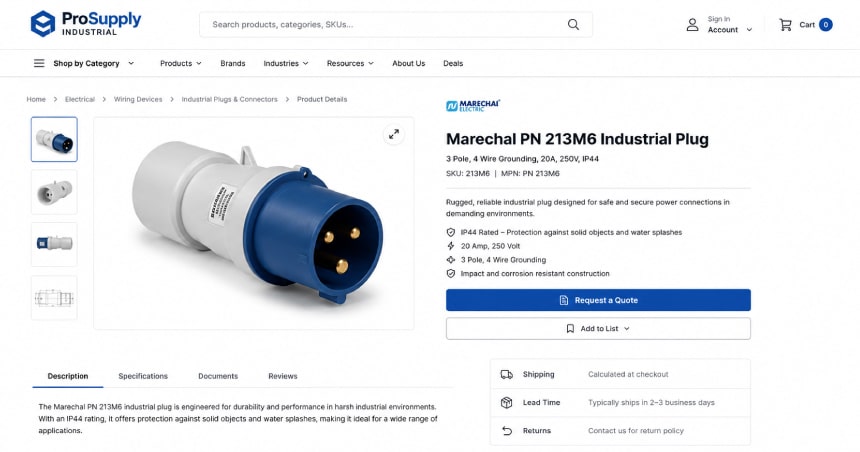
A WooCommerce quote request workflow replaces direct checkout with a request-for-quote form. You need one whenever pricing depends on negotiation, custom specs, or freight that can’t be calculated automatically.
Industrial buyers and custom-spec manufacturers rarely want to pay instantly online. They want a human-reviewed quote first.
B2BKing includes a built-in RFQ module. It converts specific products, categories, or entire customer groups to quote-only instead of buy-now.
Wholesale Suite has lighter quote functionality. Some stores pair WooCommerce with a dedicated chat-based quoting layer for faster turnaround.
Configuring which products go through RFQ
You can run RFQ at three different scopes. The narrowest is a single product flagged quote-only. The widest is a customer group rule that hides the buy button across the board.
Most B2B stores mix all three scopes. Custom or high-cost items go to quote, while standard SKUs stay on direct checkout.
If your sales team is buried in manual quote requests, a B2B quoting tool can route and qualify requests first. That cuts response time from days to minutes.
What a quote request form should capture
A working RFQ form captures more than name and email. It needs the requested SKU and quantity, the buyer’s account ID, any custom specification notes, and a target delivery date.
Missing any of these fields costs you time. Your sales team spends the first email just asking for information the form should have collected.
Pre-filling fields with account data speeds this up further. A logged-in buyer’s form can pull their company name, shipping address, and price tier automatically. That leaves only the SKU, quantity, and notes to fill in by hand.
Some B2B buyers also want self-service order history and reorder tools alongside the quote option. Virtina’s guide to a WooCommerce B2B customer portal covers that account-side experience in more depth.
How do you handle tax exemption certificates for B2B buyers in WooCommerce?
You handle tax exemption certificates for B2B buyers in WooCommerce by attaching an exemption flag to the account. That flag connects to your tax calculation plugin, so qualified buyers are never charged sales tax at checkout.
This requires either a tax plugin like TaxJar or Avalara, or the exemption fields built into B2BKing. The certificate itself still needs to be collected and verified outside the cart.
This usually happens through document upload during registration or a manual approval step. The plugin’s job is enforcing the exemption at checkout, not validating the certificate’s legitimacy.
Where the certificate upload should live
The cleanest setup puts certificate upload on the registration form, gated behind admin approval before the account can order. This keeps unverified buyers from checking out tax-free while the certificate sits unreviewed in an inbox.
Common tax exemption mistakes
The most frequent failure is applying the exemption without re-verifying expiration dates. Exemption certificates expire, often annually, and a static flag on an account doesn’t track that.
Build a recurring reminder into your approval workflow instead of a one-time checkbox.
Tax exemption and payment terms often get configured by the same team in the same sprint. Both affect what a buyer sees at checkout. If your store still defaults every account to pay-now, Virtina’s guide to WooCommerce net payment terms covers that separately.
What catalog visibility rules should a WooCommerce B2B store use?
A WooCommerce B2B store should use catalog visibility rules that hide prices, the buy button, or the entire catalog. These rules apply to guests and non-approved accounts.
WooCommerce core supports a basic version natively, through Catalog Visibility settings per product. Full B2B control, including a login wall over the whole store, still needs a plugin like B2BKing.
Native WooCommerce lets you mark products as hidden, search-results-only, or shop-only. This controls where a product appears, but it doesn’t touch pricing visibility or require login.
Three levels of catalog restriction
The lightest restriction hides prices and the buy button from guests while still showing products and descriptions. This is useful for SEO, since pages stay indexable.
The middle restriction requires login to see any price, showing guests a request-access message instead. The strictest restriction hides the entire catalog behind a login wall, blocking even product browsing until an account is approved.
Picking the right level for your store
Choose price-hiding-only if organic search traffic and product discoverability matter to your funnel. Choose full catalog gating if your pricing is customer-specific enough to create channel conflict if shown publicly.
Most manufacturers land in the middle: visible catalog, hidden price, login required to see numbers.
A properly configured catalog with clear visibility rules also helps AI shopping agents understand what you sell. That benefit is covered in more depth in Virtina’s guide on building a store AI shopping agents can read.
Which B2B pricing plugin should you choose: B2BKing, Wholesale Suite, or native B2B Pricing?
The right B2B pricing plugin depends on your buyer tiers and how much you want in one place. B2BKing covers the most ground in a single plugin. Wholesale Suite is the simplest path for one wholesale tier.
The native extension fits stores already committed to WooCommerce.com. Price is a secondary factor worth weighing too.
B2BKing and Wholesale Suite both carry one-time or annual license costs that scale with site count. The native extension bundles into your existing WooCommerce.com subscription. That can simplify procurement for finance teams that prefer fewer vendors.
| Plugin | Pricing model support | MOQ support | Quote/RFQ support | Best for |
|---|---|---|---|---|
| B2BKing | Role-based, tiered, and quantity pricing across multiple buyer tiers | Yes, product and order level | Yes, built-in RFQ module with group-level rules | Multi-tier stores needing pricing, MOQ, and quoting in one plugin |
| Wholesale Suite | Single wholesale role with per-product pricing and basic tiers | Yes, product level | Limited, lighter quote functionality | Stores with one wholesale tier wanting the simplest setup |
| Native B2B Pricing extension | Role-based pricing tied to existing WooCommerce customer roles | No native MOQ field | No built-in RFQ | Stores already on WooCommerce.com wanting first-party integration |
Plugin capabilities compared as of June 2026, based on each vendor’s published feature documentation.
Whichever plugin you choose, configuration mistakes here tend to surface later as performance problems. Stacking three or four plugins to cover pricing, MOQ, and quoting is a common cause of slow checkout.
Virtina’s WooCommerce B2B performance guide covers those issues directly. If you’d rather skip the trial-and-error, you can talk to Virtina’s team about configuring these settings end to end.
People also ask
Can WooCommerce hide prices from guests natively?
WooCommerce’s native Catalog Visibility setting controls where a product appears, not whether its price shows. Hiding prices from guests requires a plugin like B2BKing or a role-based pricing extension on top of core WooCommerce.
Do you need a plugin for minimum order quantities?
Yes. WooCommerce core has no MOQ field on products or cart rules. Enforcing a minimum unit count requires a dedicated plugin such as B2BKing or Wholesale Suite.
Can one WooCommerce store run both retail and B2B pricing at once?
Yes, and this is the most common setup among manufacturing and distribution clients. Role-based pricing plugins show retail prices to guests while applying B2B discounts only to approved, logged-in accounts.
Conclusion
WooCommerce can run a serious B2B operation, but only once you configure it deliberately. That means customer groups, tiered pricing, MOQ, quote requests, tax exemption, and catalog visibility, all six. None of these arrive working out of the box.
Stacking the wrong plugin combination creates more cleanup work than starting with the right one. Start with the plugin decision, then work through each configuration area in the order this guide covers it.
If your team would rather hand this off, Virtina can configure these settings end to end. That includes connecting them to your existing pricing data and ERP.
Frequently asked questions
Which plugin should you use for B2B pricing on WooCommerce?
Use B2BKing if you need multiple buyer tiers with different pricing, MOQ, and quote workflows. Use Wholesale Suite if you only need one wholesale tier. Use the native extension if you already run WooCommerce.com extensions.
Can WooCommerce hide prices from guests natively?
No. Native Catalog Visibility settings control where a product appears, not whether the price displays. Hiding prices from guests requires a B2B plugin layered on top of core WooCommerce.
Do you need a plugin for minimum order quantities?
Yes, WooCommerce has no built-in MOQ field. You need a plugin such as B2BKing or Wholesale Suite. It enforces minimum unit counts at the product or order level.
How do tiered pricing rules differ from a flat wholesale discount?
A flat wholesale discount applies one percentage off regardless of order size. Tiered pricing applies different discounts at different quantity breakpoints. A 10-unit order and a 100-unit order get different per-unit prices.
What is the difference between a quote request workflow and standard checkout?
Standard checkout lets a buyer pay immediately at a fixed, calculated price. A quote request workflow routes the order to a human for custom pricing or freight calculation first. Payment happens only after that review.
How do you verify a tax exemption certificate is still valid?
The plugin itself doesn’t verify legitimacy. Build a manual review step into account approval. Set a recurring reminder to recheck expiration dates, since most exemption certificates expire annually.
Should you hide your entire catalog or just hide prices?
Hide prices only if product discoverability and SEO matter to your funnel. Hide the entire catalog if your pricing is customer-specific enough to create channel conflict if shown publicly.
Does WooCommerce B2B configuration affect how AI shopping tools read your store?
Yes. Clear, consistent customer group and catalog rules make it easier for AI shopping agents to understand what you sell. That topic is covered in Virtina’s guide on building an AI-agent-ready store.
Gigi JK is the founder of Virtina, an eCommerce solutions partner. Virtina has helped 1,000+ B2B and B2C brands strategize, optimize, and solve problems across WooCommerce, Magento, BigCommerce, and Shopify. Gigi specializes in B2B configuration, replatforming, and performance fixes for manufacturers, distributors, and wholesalers.